
SCROOMS Controls for PC and Mobile
SCROOMS CONTROLS / INPUTS AND MENUS
SCROOMS uses different controls for movement, NPC interaction, catching and equipment. Start with the action you need. Desktop letter keys are not instructions for a touch device: use the equivalent control displayed in your Roblox session.
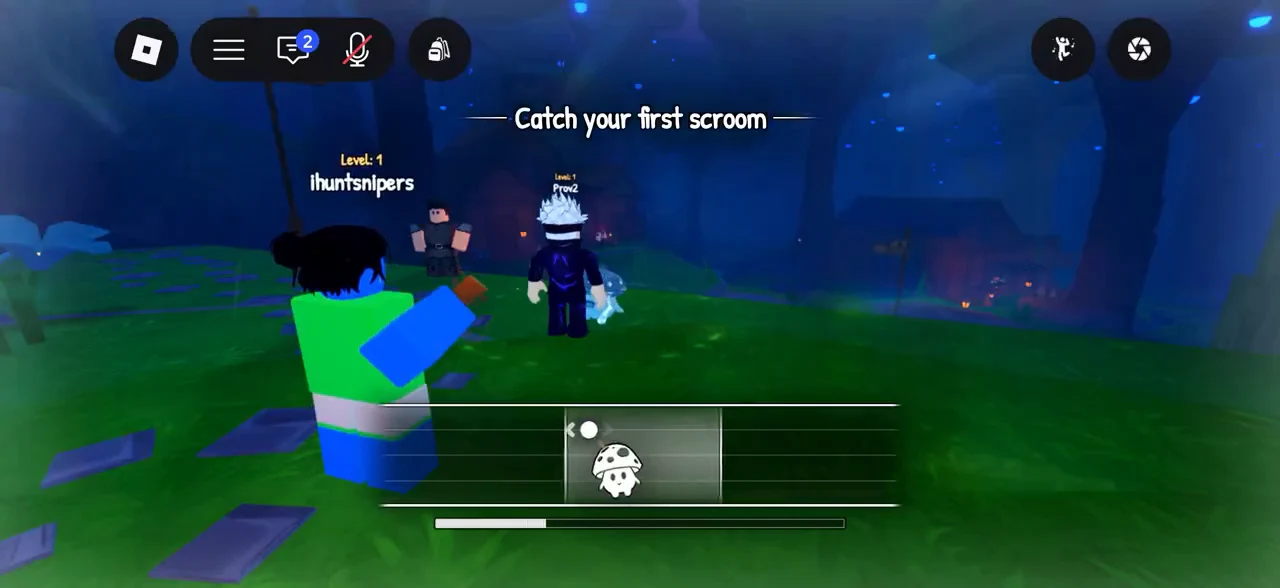
SCROOMS PC Controls by Action
Section titled “SCROOMS PC Controls by Action”| Action | Reported PC control | What to check |
|---|---|---|
| Move | Roblox movement controls, including W for forward | Keep movement aimed at the landing or NPC. |
| Jump | Space | A second airborne jump requires the later Echo Step unlock. |
| Talk or Pay Respects | E when the prompt appears | Seeing an NPC or statue is not the interaction. |
| Open the backpack | G in the reviewed walkthrough | Select the required held creature or Core Item. |
| Tune and track a catch | Follow the displayed click/drag prompts | Tuning and capture-zone movement are separate stages. |
| Equip a catching instrument | Equipment Bag → Instruments → select item → Equip | Owned and equipped are different states. |
These are launch-reference inputs. A changed on-screen prompt takes priority over this table.
SCROOMS Mobile Controls
Section titled “SCROOMS Mobile Controls”Use Roblox’s touch movement and jump controls, the visible backpack button, and the interaction prompts shown by the game. During a catch, use the matching on-screen drag control rather than pressing a keyboard letter from a PC walkthrough.
The references do not establish one universal controller-button mapping or independently tested mobile jump timing. Check the active prompt instead of applying another device’s controls.
Equip an Instrument or Hold a Quest Catch
Section titled “Equip an Instrument or Hold a Quest Catch”For a catching instrument, choose it under Equipment Bag → Instruments and press Equip. For a creature hand-in, the backpack selection and held item can matter separately. Marina’s reported Fungstone task is an example: an Index entry alone is not the creature held for delivery.
When a SCROOMS Dialogue Does Not Accept Clicks
Section titled “When a SCROOMS Dialogue Does Not Accept Clicks”The source-linked PC guide describes a camera-control state that can prevent choosing a dialogue response. If your session displays Camera Control Enabled, its reported check is to release that state with a right-click before choosing the reply. This is a conditional desktop check, not a universal mobile or quest-bug fix.
For the complete capture sequence, follow how to catch Scrooms. For movement unlocks, choose initial Songtreads or the later double jump.
Sources & version notes
Sources reviewed 24 October 2026. Community steps are source-reported; this guide does not claim an independent in-game playtest.
- SCROOMS launch walkthrough: catch and equipment controls
- Source-linked PC and mobile control reference